Xbox Mode on Windows 11: What It Is and How to Turn It On
Xbox Mode gives Windows 11 a controller-first gaming interface. Here is what it changes, who can use it and how to enter or leave it.
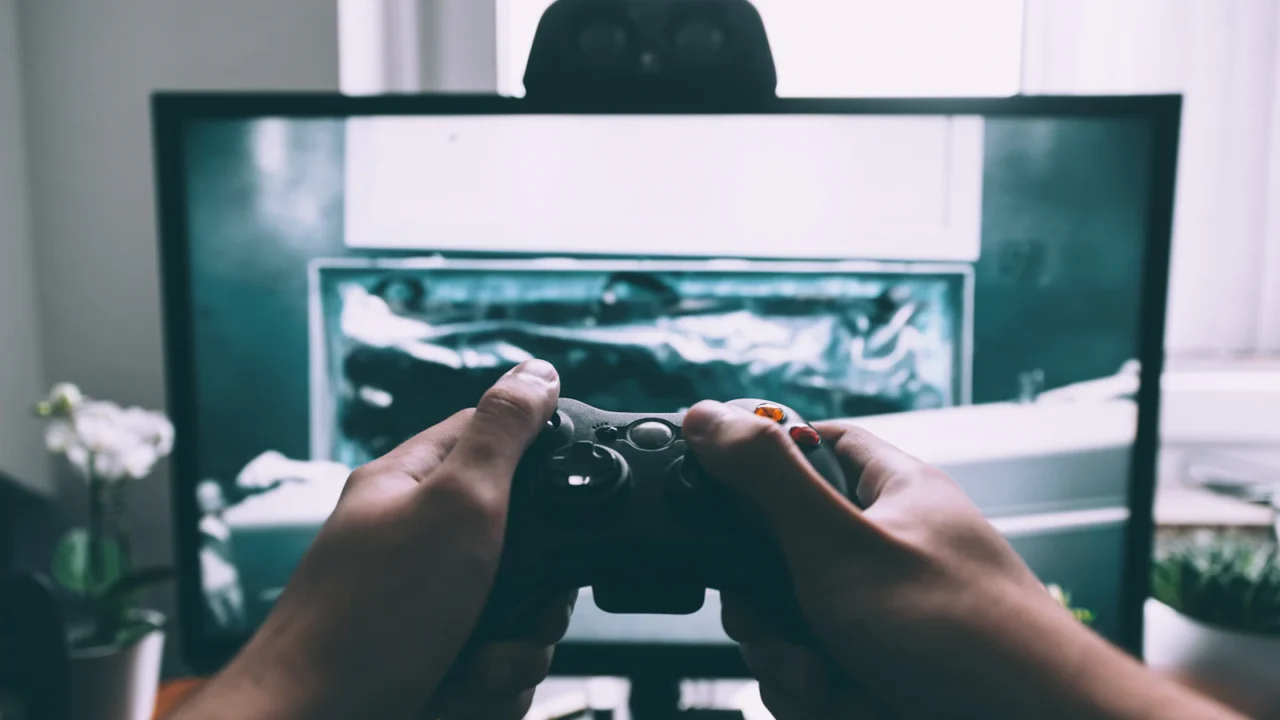
Windows 11 now has an Xbox Mode designed to make a PC feel more like a console when you are playing from a couch, handheld or controller-first setup. Microsoft describes it as a dedicated gaming experience that opens a gaming home app and runs games full screen.
What Xbox Mode actually changes

According to Microsoft’s Windows Gaming: Full screen experience documentation, Xbox Mode is available on Windows 11 24H2 or later in supported markets. It adds controller-oriented navigation, Game Bar and Task View entry points, and a full-screen presentation model.
On handhelds, Microsoft can also limit startup activity when Xbox Mode starts at sign-in. On conventional PCs, the feature is less aggressive: it gives you the controller-focused environment without turning Windows into a different operating system.
How to enable it
- Open Settings.
- Go to Gaming > Xbox mode.
- On a normal PC, enable Xbox Mode.
- On a handheld, choose a supported gaming home app and optionally enable Xbox Mode at startup.
You can enter Xbox Mode from Game Bar, Task View or with Win + F11. The same shortcut can take you back to the normal desktop.
What to expect inside Xbox Mode
Microsoft says only one window is displayed at a time and apps are shown full-screen where possible. Some desktop shortcuts are disabled, and apps that do not support full screen can appear against a black background.
Who should use it?
It makes the most sense for handheld PCs, living-room systems and controller-heavy gaming setups. Mouse-and-keyboard desktop users may prefer normal Windows most of the time and enter Xbox Mode only when they want a cleaner couch interface.
The key advantage is convenience rather than guaranteed extra FPS. Treat it as a different way to operate your PC, with some startup-process optimizations on supported handheld configurations.