How to Uninstall or Pause a Windows 11 Update (and When Not To)
Microsoft's documented steps to check, uninstall or pause a Windows 11 update, use recovery if the PC won't start, and when leaving it alone is smarter.
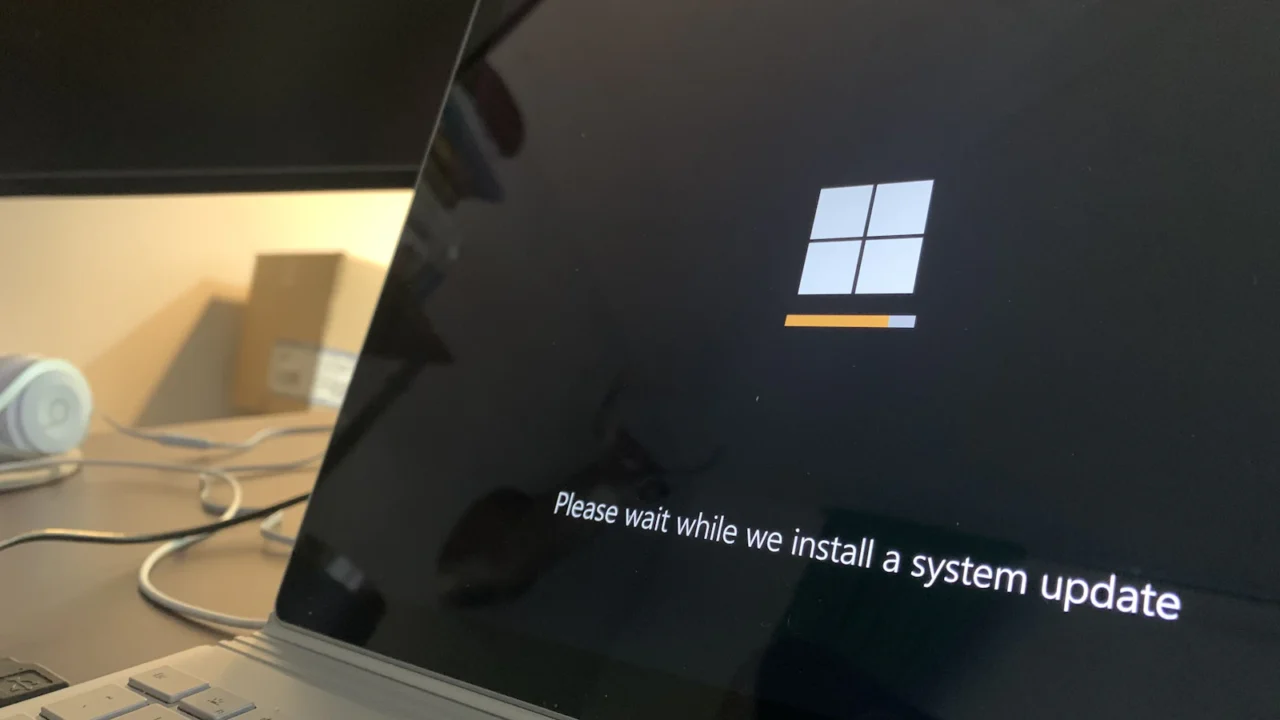
Microsoft’s documentation describes two ways to back out of a Windows 11 update that has broken something: uninstall the update, or pause updates for up to 35 days. Both can help when a PC starts crashing right after an update, and both cost you something, because you are delaying or removing security fixes. This guide covers Microsoft’s steps and, just as important, how to decide whether to touch any of it.
How this guide was made. Every step below comes from Microsoft’s own support and Learn pages, read on September 26, 2026. Knight Logs has not run these steps on a PC for this article, so each one is attributed to Microsoft rather than presented as something we verified. Menu names change between Windows builds. The wording here follows Microsoft’s documentation as of September 2026 for Windows 11 24H2 and 25H2; if your Settings app looks different, trust what is on your screen and Microsoft’s current pages over this one.
Should you do this at all?
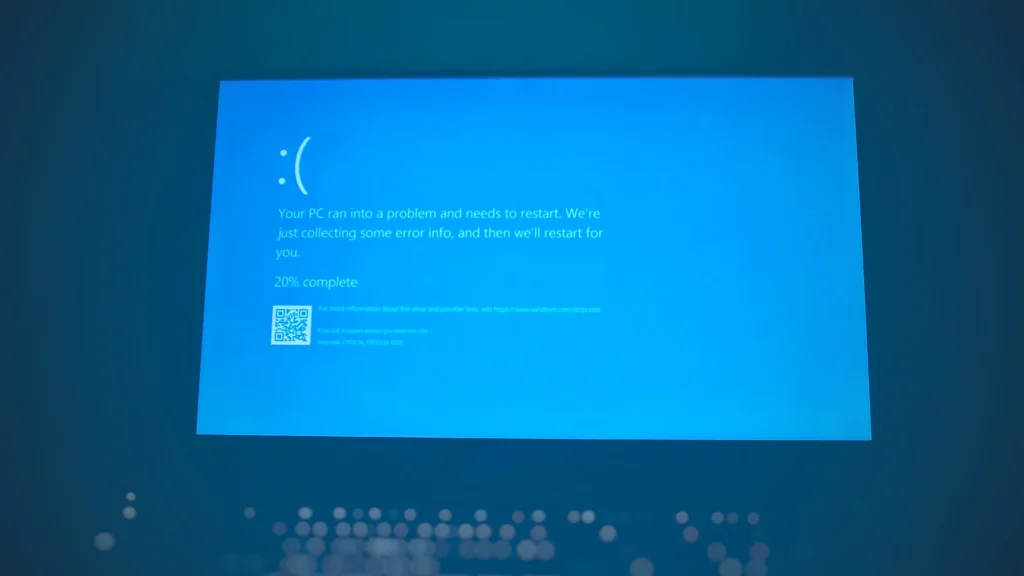
Usually not. Microsoft’s Windows Update FAQ says it does not recommend removing installed updates, notes that not every update can be removed, and says updates cannot be stopped permanently because they keep the device secure. Microsoft’s Known Issue Rollback documentation makes the same trade-off explicit: uninstalling or skipping a whole update keeps you from that update’s security fixes.
Our read: only uninstall or pause when you have a concrete, evidenced problem. That means something like this:
- The problem started right after a specific update. Compare the install date in your update history (see below) with when the crashes, black screens or boot problems began.
- It is repeatable, not a one-off. A single crash is not evidence.
- You have ruled out the obvious alternatives. Microsoft’s own tracker shows updates are not always the cause: it recorded games becoming unresponsive on some Windows 11 PCs in August 2026 and said its investigation confirmed the issue was not caused by Windows updates but by a driver installed with some RGB-lighting peripherals (Windows 11 25H2 known issues, as of September 25, 2026).
Check whether Microsoft already knows about it
Before removing anything, look at Microsoft’s Windows 11 known-issues pages. As of September 25, 2026, the 25H2 page lists several September 2026 issues, and some are marked resolved by an out-of-band update, KB5129195, released September 14, 2026. Microsoft says that update is cumulative and recommends installing the latest available update, since it includes fixes for issues like these. In that situation, installing the newer update can be a better answer than rolling back.
Microsoft also has a mechanism called Known Issue Rollback. Per its documentation, it switches off one specific faulty change in a non-security update while leaving the rest of the update in place, and it does not apply to security fixes. For ordinary PCs that get updates through Settings > Windows Update, Microsoft says it delivers the rollback through Windows Update itself, with no action needed from you, though a restart may be required. So if the problem is a known one, waiting for that fix may be enough.
If your problem is the crash reports around the September 2026 Windows 11 update, Knight Logs has a separate report: Radeon crash reports after the September 2026 Windows 11 update. This guide does not depend on it and applies to any update.
Check which update is installed
- Update history. Microsoft’s FAQ says to select Start > Settings > Windows Update > Update history to see which updates were installed and when.
- Windows version and build. Microsoft’s page on finding your Windows version says to right-click Start, choose Settings, then System > About. Under Windows specifications you will see the edition, version and OS build. The classic winver tool (Windows key + R, type winver) shows similar details.
Write down the update name (a KB number) and the date it installed. You will want it if you need to search for reports or contact support.
Optional: create a restore point first
Microsoft’s System Protection page says restore points let you return Windows to an earlier state without affecting personal files, and that System Protection is not turned on by default, though Microsoft recommends turning it on. To create one, Microsoft says to select Start, search for “Create a restore point”, open it, go to the System Protection tab, select Create, enter a description and select Create. If System Protection is off, you would need to enable it and allocate disk space first, and there will be no older restore points from before it was on.
A restore point covers system files, installed apps, the registry and settings. It is not a backup of your documents or saves. Our read: back up anything you cannot replace before changing system files, whichever route you take.
Uninstall an update from inside Windows
These are the steps in Microsoft’s How to uninstall a Windows update page for Windows 11:
- Select Start > Settings > Windows Update.
- Under More options, select Update history.
- Under Related settings, select Uninstall updates.
- Pick the update you want to remove and select Uninstall.
Microsoft’s page does not say whether Windows will offer the same update again afterward. After removing one, check Windows Update, and use the pause option below if you need more time.
If Windows will not start properly
Microsoft’s uninstall page says that if you cannot get into Windows, you can uninstall an update from the Windows Recovery Environment (Windows RE): access Windows RE, select Troubleshoot > Advanced options > Uninstall Updates, then choose Uninstall latest quality update.
Microsoft’s Windows RE reference lists these ways to reach it:
- From the sign-in screen, select Shutdown, then hold Shift while selecting Restart.
- From inside Windows, go to Start > Settings > System > Recovery and select Restart now next to Advanced startup.
- Boot from recovery media.
- Use a hardware recovery button, if your PC’s manufacturer configured one.
Microsoft also says Windows RE starts on its own after certain failures, including two consecutive failed attempts to start Windows. If your PC lands in a recovery menu by itself, that is what you are likely seeing. One caution from the same page: in Windows RE, encrypted files are not accessible unless you have the key to decrypt the volume, so keep your recovery key handy if your drive is encrypted.
Pause updates instead
If a new update is about to install and you would rather wait for reports or a fix, Microsoft’s Pause updates in Windows page gives these steps for Windows 11:
- Select Start > Settings > Windows Update.
- On the Pause updates control, select Pick a date.
Microsoft says you can pause for up to 35 days from the current date, and the calendar only lets you choose dates inside that window. While paused, updates that need a restart are not downloaded or installed. To extend, go back to the same screen and choose a new date; the new end date is still counted from today, not added to the old pause. You can also resume manually at any time.
What not to expect
- Some updates cannot be uninstalled. Microsoft says so on both its uninstall page and its FAQ. On Windows 11, the uninstall page also says to try reinstalling your version of Windows first; the page text we could read does not spell out how, so check it directly if that applies to you.
- A pause ends. When it does, Microsoft says the device checks for, downloads and installs the latest available updates, so you catch up on everything you skipped at once. Per the FAQ, once the pause limit is reached you have to install the latest updates before you can pause again.
- You are trading away security fixes. Microsoft’s uninstall page says to understand the risks before removing a security update. Our read: keep any pause short, and do not treat it as a way to stay on an old build.
- It might not fix your problem. If the cause was a driver, an overlay or hardware, removing the update changes nothing.
After the problem is sorted
Resume updates from the same Windows Update screen, or let the pause run out, and install the latest update once Microsoft or the hardware vendor says the issue is fixed. Microsoft’s known-issues pages are updated as fixes ship, so that is the place to check. This guide reflects Microsoft’s documentation as of September 26, 2026, and menu names may have changed since.